
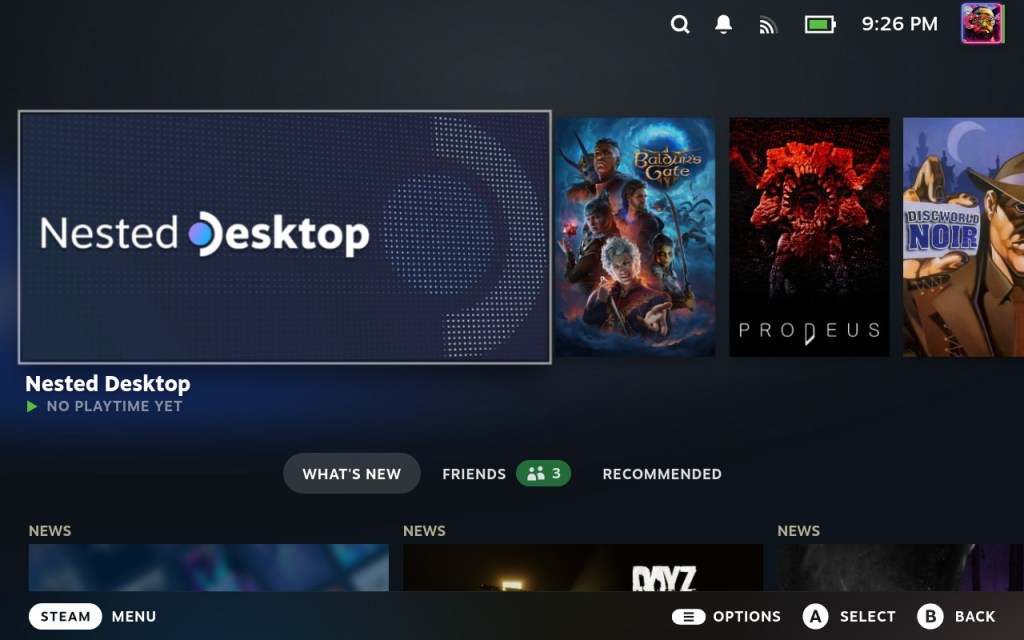
Nested Desktop is a pretty unreal Steam Deck feature that I don’t see many people talking about. Valve added it back in 2023 as part of the SteamOS 3.5 update, but they don’t seem to openly advertise it. Nested Desktop is a Steam Deck application which allows you to use SteamOS’ Desktop Mode directly within Gaming Mode. It’s a great option if you want quick access to your desktop, files or folders without taking the time to reboot into Desktop Mode. Need to move some files around or download a third-party app or game? Well, Nested Desktop has you covered. It only takes a few minutes to get going, so lets get into it.
How to Access Desktop Mode within Gaming Mode using Nested Desktop
Disclaimer: Nested Desktop is incredibly convenient for downloading files, installing apps and doing general Desktop Mode stuff. Most things work fine, but you won’t be able to launch Steam since it’s already running in Gaming Mode and some applications may not play nice. It’s not a complete replacement for Desktop Mode.
- Swap into Desktop Mode on your Steam Deck
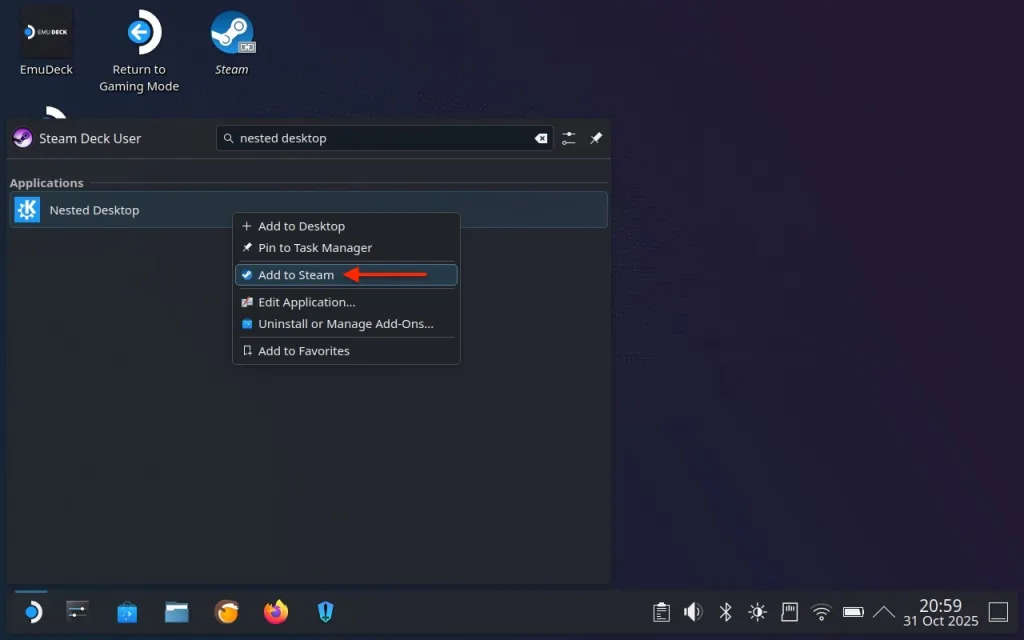
- Open your application menu and search for ‘Nested Desktop’
- There will be one option here: uh, the Nested Desktop app
- Right-click Nested Desktop and select ‘Add to Steam’
- Head back to Gaming Mode and launch Nested Desktop
- Once launched, press the ‘Steam’ button, select ‘Controller settings’ and set your preferred controls or select a community layout
Please note, you may run into performance issues with anything resource intensive. While pretty minor, I’ve found Nested Desktop to be slightly slower than Desktop Mode, but still perfectly responsive for basic desktop tasks.



 Dad with a Deck
Leave a comment